
Guide
How OrbitDots works
Last updated: 5 September 2026
OrbitDots is a live prioritization board where a group surfaces what it actually cares about. You can start with optional pre-work to collect ideas before the meeting, then move into the live board. Instead of polls or raised hands, participants move toward the topics that matter to them. Movement distributes a finite share of attention, while orbiting commits it. See the room find its focus.
Watch the flow first
A fast walkthrough of the full session flow: setup, movement, voting, live attention, controls, and results.
1. Getting started
One person hosts a room and shares the URL. Everyone who opens that link joins the same board. Each participant appears as an animated dot and can move freely across the canvas. Cards represent topics, ideas, or questions. They can be added live (if the host allows it) or collected beforehand through pre-work. From there, the board comes alive as participants gravitate to what interests them.
2. Pre-work
When creating a room, a signed-in host can enable Collect pre-session ideas. That turns the room into a pre-work board before the live session begins.
During pre-work, signed-in participants can submit ideas into lanes. They can see idea counts, but submissions stay private to their author until the host starts the live session. The host can review everything, manage lanes, and move submissions around before the meeting starts.
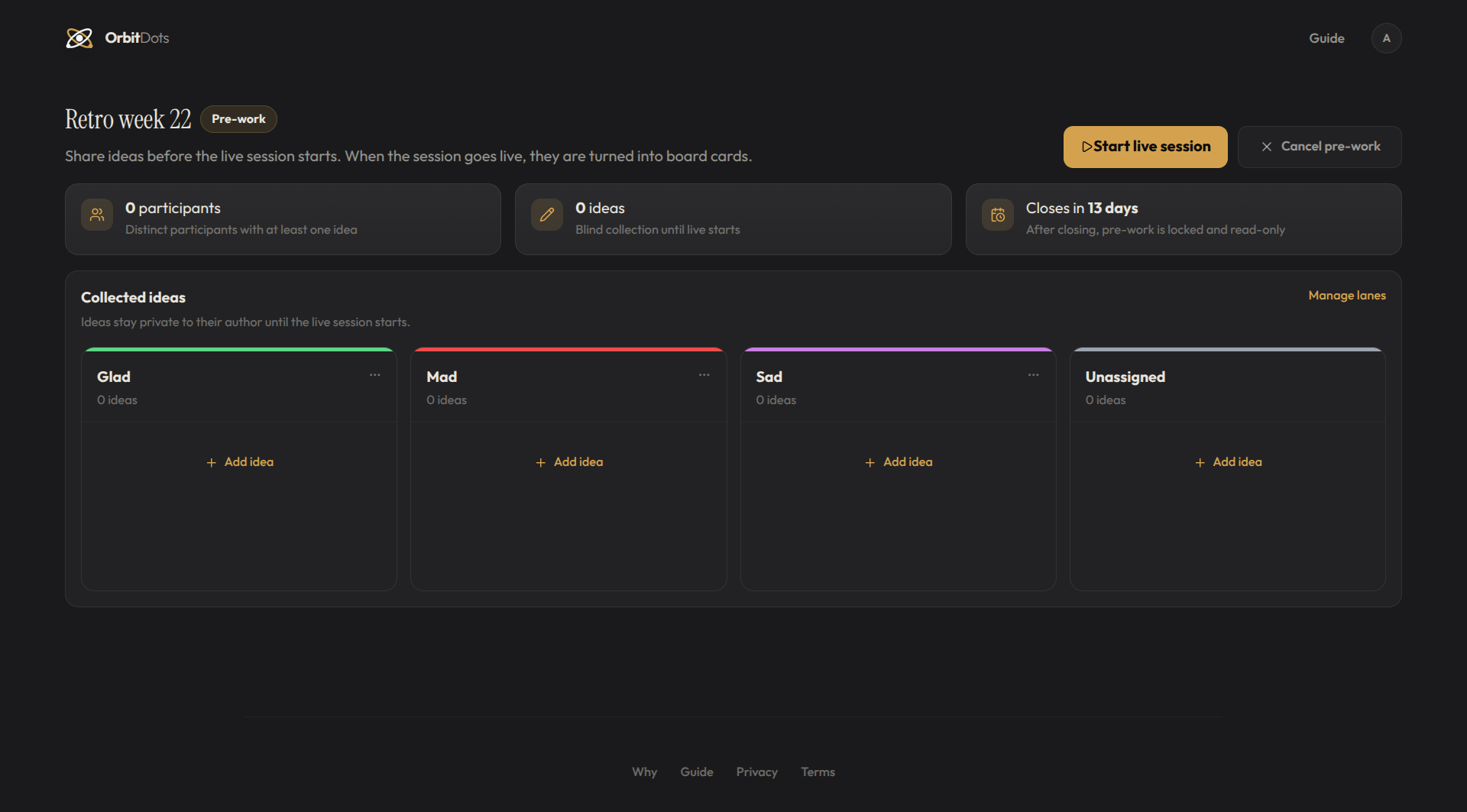
When the host clicks Start live session, pre-work closes and the collected ideas become normal board cards. If pre-work is cancelled or expires first, the room becomes read-only and keeps the collected ideas as a record.
3. Voting with movement
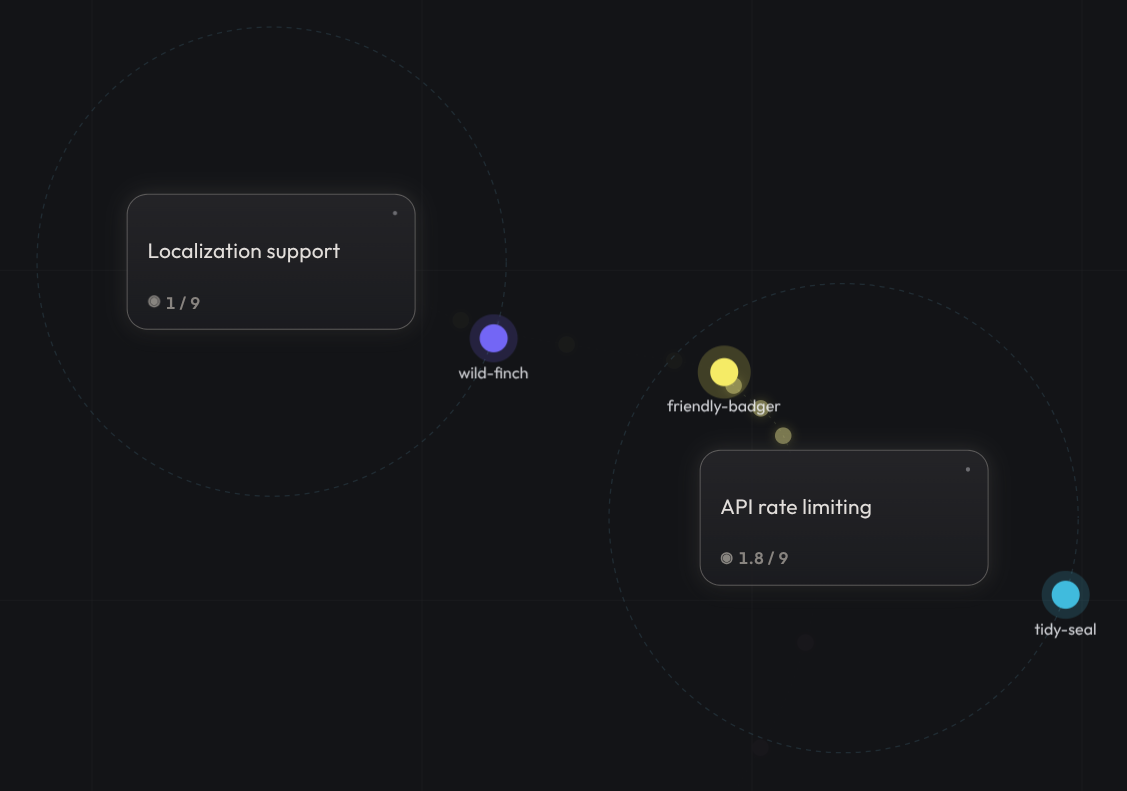
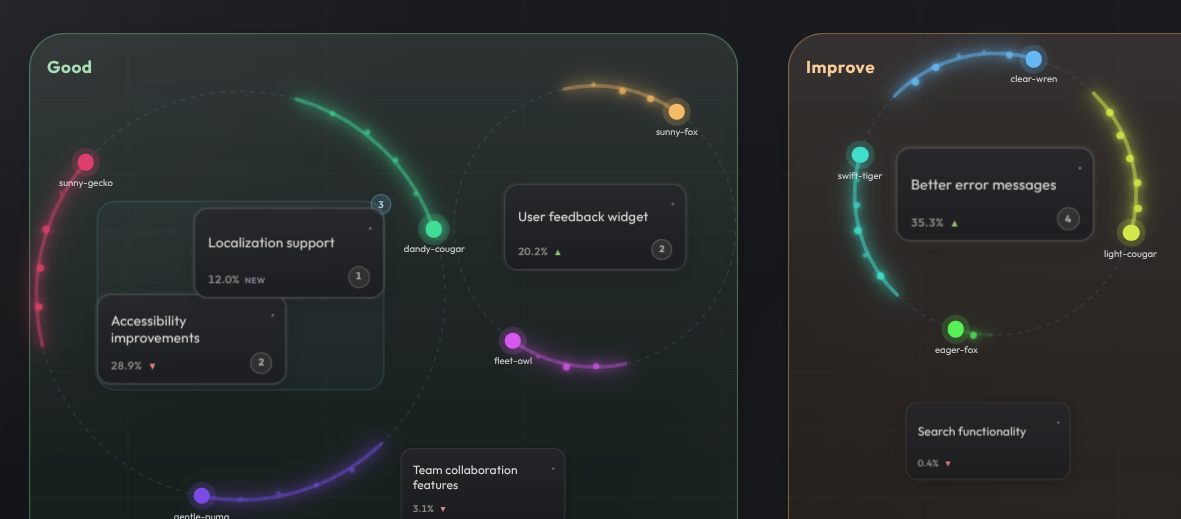
There are no buttons to click “+1.” Your position on the board is your vote. Every participant has one share of attention.
- Movement: moving closer continuously gives more attention to up to three nearby cards or clusters; anything unallocated stays neutral.
- Orbiting: clicking a card locks you into an orbit around its cluster and commits your full attention share there.
4. Live attention
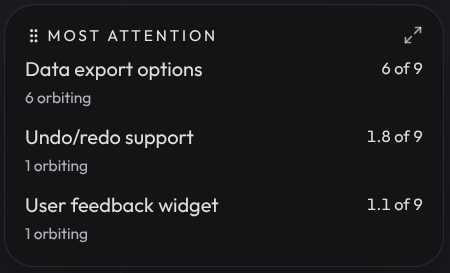
Every card shows how much of the room’s attention it currently receives. For example, 3.7 / 8 means 3.7 of the attention available from eight participants is directed to the card or cluster.
Live attention has no memory: when people move, orbit, or leave a topic, the board reflects the new situation immediately.
5. Clusters
When cards are dragged close together they automatically form a cluster, a visual grouping with shared attention. This is useful for merging duplicates or grouping related ideas so the room’s attention isn’t split across cards that mean the same thing.
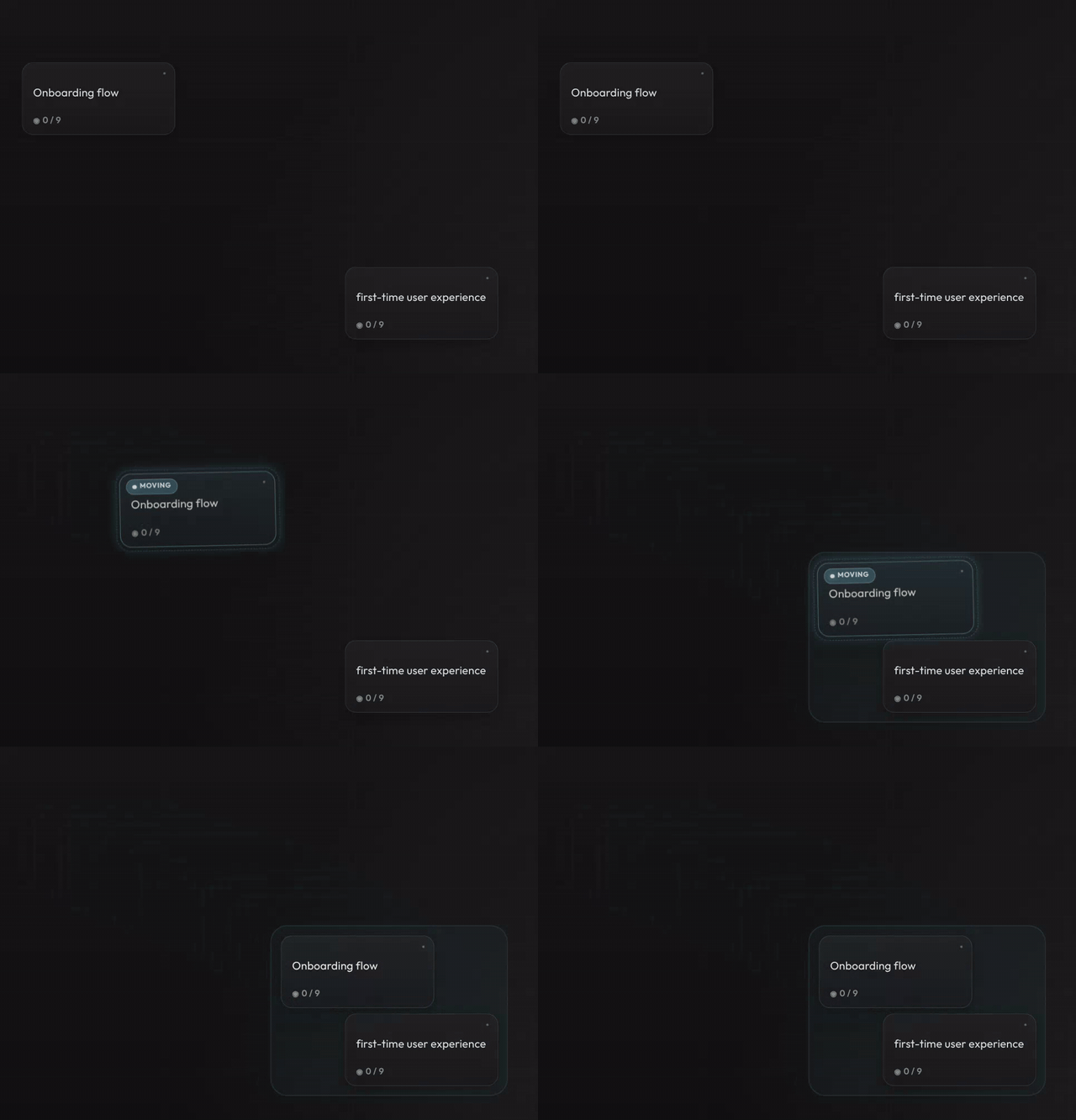
Movement and orbiting target a cluster as one unit. Its attention is shared by every card in it, so each card shows the same value as the cluster.
In ranked views, a cluster is named after the card with the most orbiters.
6. Host controls
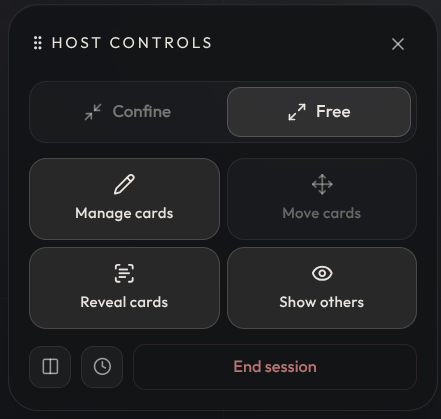
The host has a set of real-time toggles that change the dynamics of the room.
An important design principle: the host is also a participant. Some controls, like Reveal cards and Show others, apply to the host just as they apply to everyone else. When card text is hidden, the host can’t see other people’s cards either. When others are hidden, the host is also alone on their screen. This keeps the playing field level and prevents the host from having more information than anyone else during a session.
Other controls, like Manage cards and Move cards, restrict only participants. The host can still organize the board, with every change visible to others.
Confine
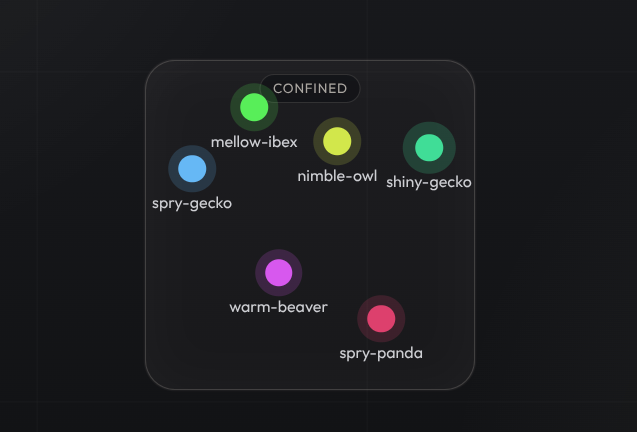
Confine keeps all participants inside a fixed region of the board, which is a practical way to pause spatial attention. Useful during card creation, so new cards don’t pick up attention before the group is ready to vote, or when you want to pause and discuss what’s on the board without attention shifting underneath the conversation.
Manage cards
Manage cards controls whether participants can create, edit, and delete their own cards. Turn it off so only the host manages topics, which works well for structured Q&A or when the agenda is set in advance.
Move cards
Move cards controls whether participants can drag cards and form clusters, or whether only the host organizes the board.
Reveal cards
Turn Reveal cards off during card creation so everyone (the host included) writes and submits ideas without seeing what others have posted. It stops the first few cards from anchoring the group and dominating the conversation. Reveal everything later, once the brainstorming phase is done.
Show others
Turn Show others off for independent voting: it hides all other participants, their orbits, and live attention, so everyone (the host included) sees only their own dot and contributes without being swayed by where others are moving. Turn it back on when the voting phase is done to reveal the results together. Pairs well with taking a snapshot right after revealing.
Lanes
The host can divide the board into lanes: titled, color-coded columns or rows. Think retro categories, discussion phases, or priority buckets. Lanes have no effect on attention or clustering, but the lane containing each card is retained in snapshots and results. They are context for the outcome, not a way to influence attention.
Timer
The timer is a visible countdown that helps pace the session. When it runs out, nothing is forced. The host decides what happens next.
7. Anonymous rooms
When creating a room, the host can enable Anonymous mode. This is a room-level setting chosen before the session starts and cannot be changed afterwards. In anonymous rooms, participants join instantly without entering a name. Everyone receives an auto-generated identifier instead. In non-anonymous rooms, participants are asked for a display name when they join.
Anonymous mode pairs well with the visibility controls under host controls.
8. Snapshots
At any point during a session, the host can take a snapshot. A snapshot captures the board state at that moment: which topics were leading, how they were clustered, and who was orbiting where.
Snapshots are useful for marking key moments: before and after revealing cards, at the end of a voting round, or right before moving on to a new topic.
Each room allows up to 50 snapshots.
The Most attention panel shows the delta since the most recent snapshot. With the panel expanded, you can step back through earlier snapshots.
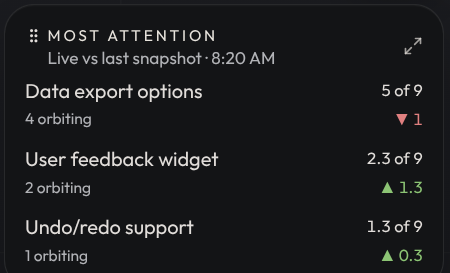
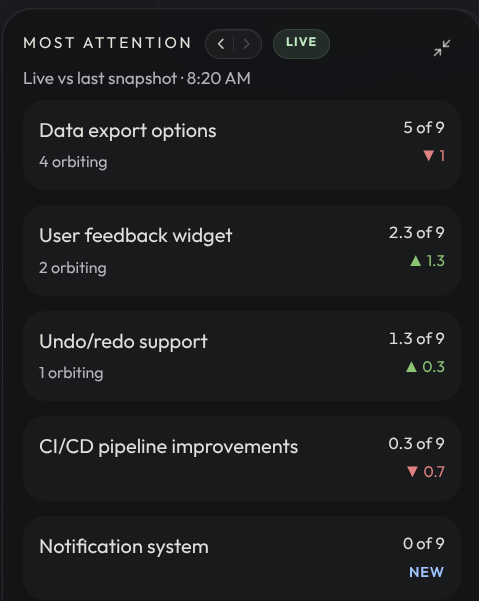
Once the session ends, all snapshots appear on the results page with timestamps, so you can compare how attention shifted between different phases. Ending the session also saves a final snapshot, which becomes the closing record for the room’s results.
9. Discussed topics
The host can mark a card or cluster as discussed. Discussed cards stop receiving attention: orbiting and nearby attention no longer count toward them. They stay on the board with a checkmark badge, but they’re effectively frozen. This lets the host move through an agenda without old topics competing for attention against new ones.
The host can also reopen a discussed card if the group needs to revisit it.
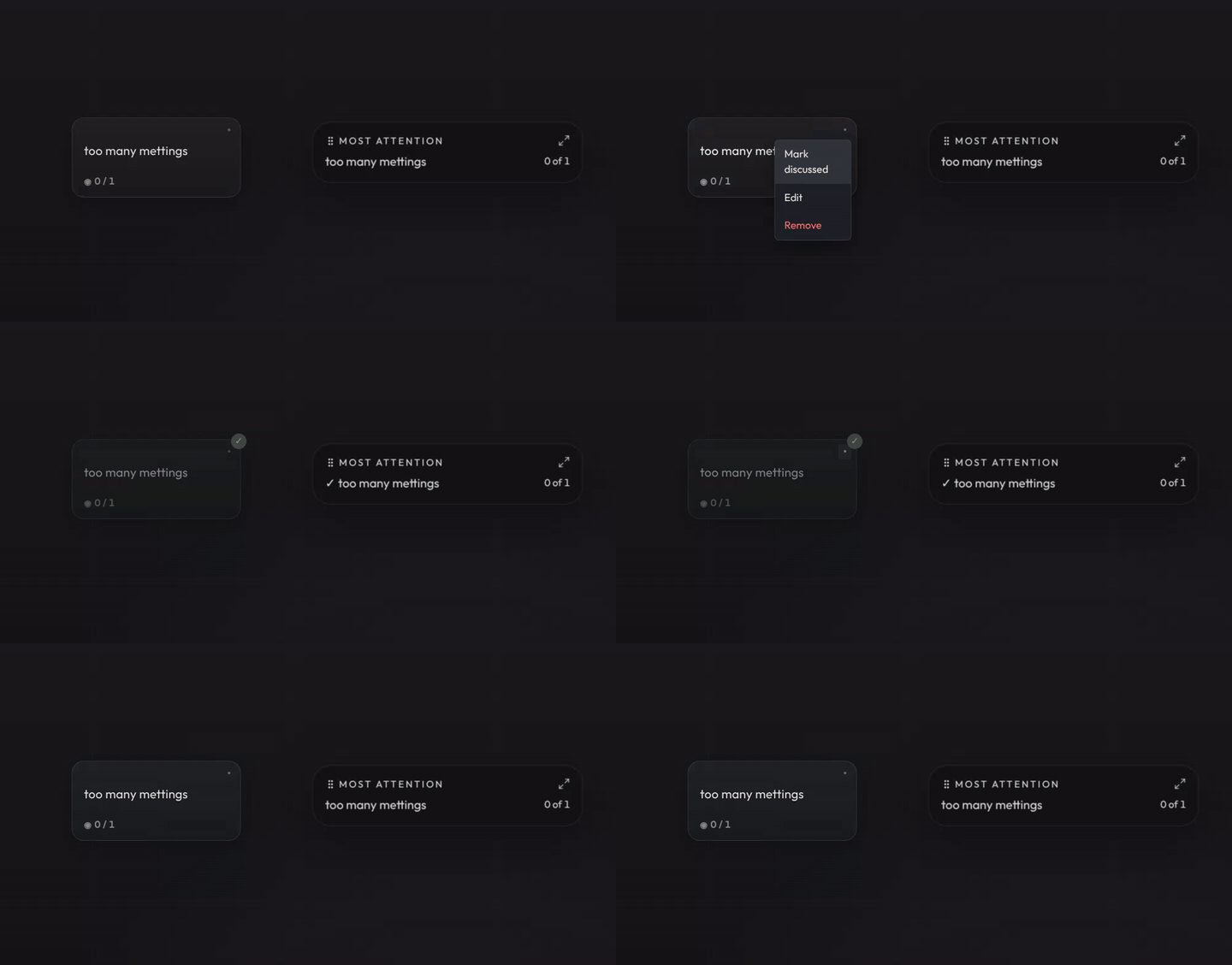
If a cluster is marked as discussed, all cards in it are included.
10. Results
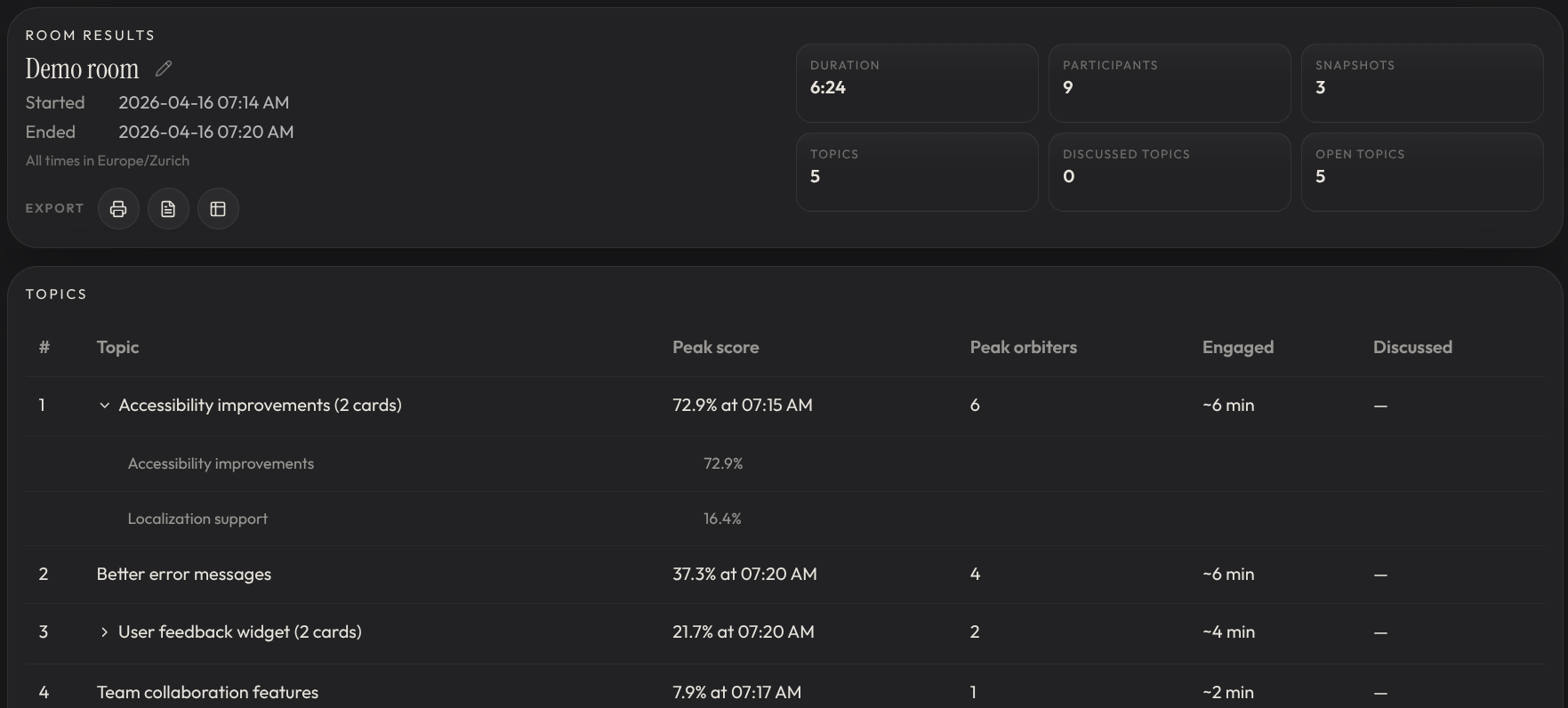
When the host ends the session, everyone is taken to a results page that breaks down what happened: topics ranked by peak attention, total attention, and time leading, plus a timeline showing how attention shifted over time.
Clusters are preserved with their grouped cards, discussed topics are shown separately from open ones, and snapshots captured during the session are also preserved as board-state checkpoints, so you can revisit what the room was focused on at each key moment. The results page is shareable via its URL, and anyone with the link can view the outcome.
11. Signed-in users
OrbitDots works without an account, but signing in unlocks a few conveniences:
- My rooms shows all rooms you’ve hosted: active sessions, past results, and expiration status in one place.
- If you hosted a room while signed in, you can delete an ended room from My rooms. See Privacy for data-removal details.
- Display name is saved to your profile and pre-filled whenever you join a non-anonymous room, so you don’t have to type it each time.
- Host defaults let you save your preferred room settings (anonymous, confine/free, card permissions, and visibility controls). New rooms start with those defaults instead of the built-in ones.
- Pre-work requires sign-in to host and to submit ideas, so submissions can stay tied to their author until the live session starts.
- Quick start panel can be dismissed by anyone, but signed-in users can bring it back from Settings.
All of these are managed in the Settings page.
12. Good to know
- Room titles can be renamed by clicking the title in the top-right corner of the board, or from the results page after the session ends.
- Reconnection is automatic. If your tab closes or connection drops, OrbitDots restores your position and session state when you return.
- Keyboard shortcuts: press ? on the board to see them all.
- Room expiration: demo rooms are automatically deleted 24 hours after creation, and their results page is permanently removed. Regular rooms do not currently expire.
- Desktop-only: floating card modals, inline room renaming during a session, and right-click to create a card at a selected location are not available on mobile.